








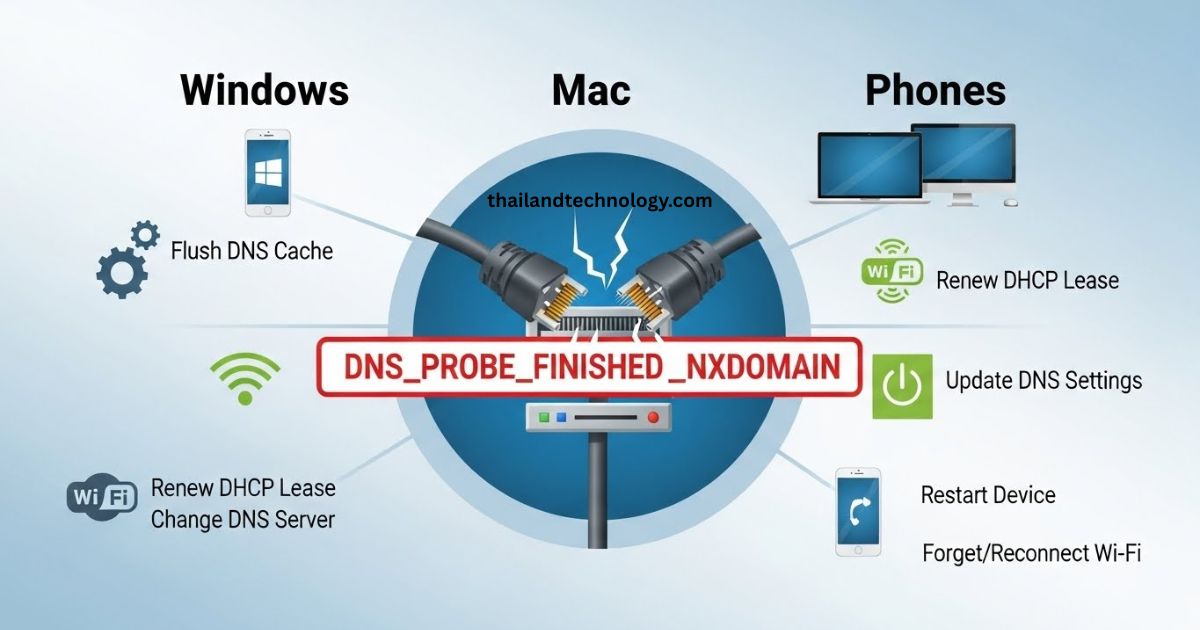
You open your browser. You type in a site. Boom – you see “DNS_PROBE_FINISHED_NXDOMAIN.” It means your device can’t find the site’s address. Don’t worry. I can help you fix it. This guide shows easy steps. It works for computers and phones. We’ll make it simple so you get back online quick.
What Is DNS_PROBE_FINISHED_NXDOMAIN?
DNS stands for Domain Name System. It turns site names into numbers computers use. Like a phone book for the web. When it fails, you get this error. “NXDOMAIN” means “no such domain.” Your browser says the site does not exist. But it might. The problem is often on your end.
Why Does This Error Happen?
Many things can cause it. Your DNS cache might be old. That’s like a bad memory. Or your network settings are wrong. Maybe your router is acting up. Antivirus software can block it too. Sometimes the site is down or the domain expired. Even VPNs mess with it. Know the cause? You fix it faster.
Quick Fixes Anyone Can Try
Start here. These work on any device. They take little time.
- Restart your computer or phone. It clears small glitches.
- Turn off your router. Wait 30 seconds. Turn it back on.
- Try a different browser. If it works there, the issue is with your main one.
- Turn off VPN if you use one. See if that helps.
- Check if the site works on another device. If yes, the problem is yours.
If these don’t work, go to fixes for your device.
How to Fix It on Windows
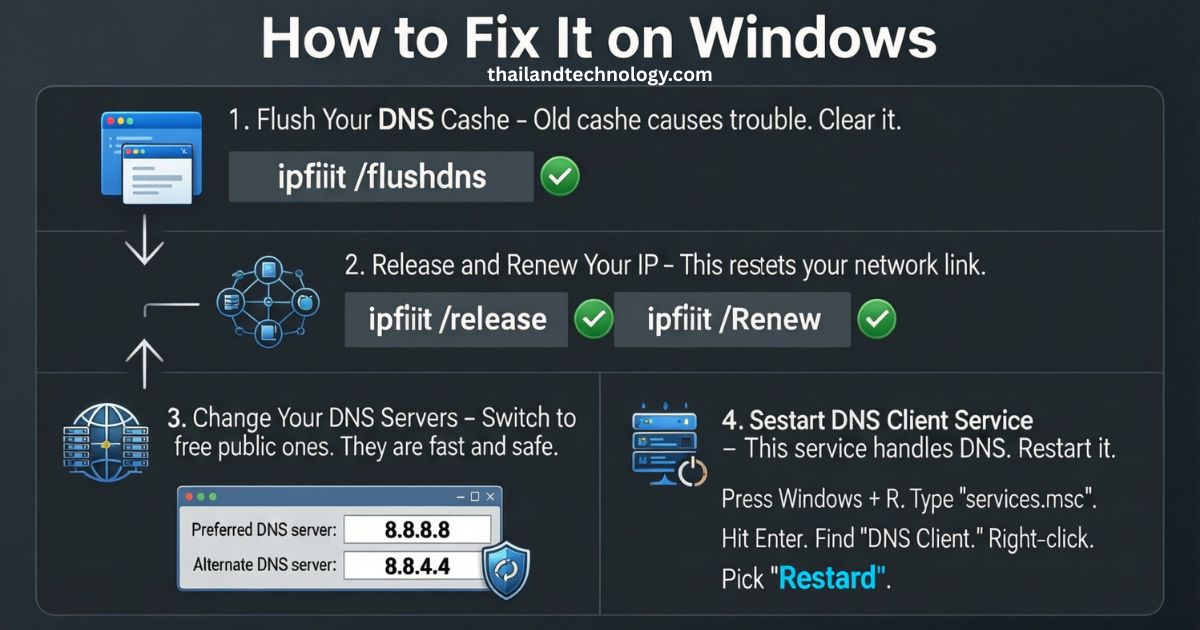
Windows users see this a lot in Chrome. Follow these steps. Use the search bar to find Command Prompt. Run it as admin.
Flush Your DNS Cache
Old cache causes trouble. Clear it.
- Open Command Prompt as admin.
- Type ipconfig /flushdns.
- Hit Enter.
- Close and try the site again.
Release and Renew Your IP
This resets your network link.
- In Command Prompt, type ipconfig /release.
- Hit Enter.
- Then type ipconfig /renew.
- Hit Enter.
Change Your DNS Servers
Switch to free public ones. They are fast and safe.
- Right-click your network icon. Pick “Open Network & Internet settings.”
- Click “Change adapter options.”
- Right-click your connection. Choose “Properties.”
- Pick “Internet Protocol Version 4 (TCP/IPv4).” Click “Properties.”
- Check “Use the following DNS server addresses.”
- Put 8.8.8.8 in Preferred. 8.8.4.4 in Alternate.
- Click OK.
Restart DNS Client Service
This service handles DNS. Restart it.
- Press Windows + R. Type services.msc. Hit Enter.
- Find “DNS Client.”
- Right-click. Pick “Restart.”
How to Fix It on Mac
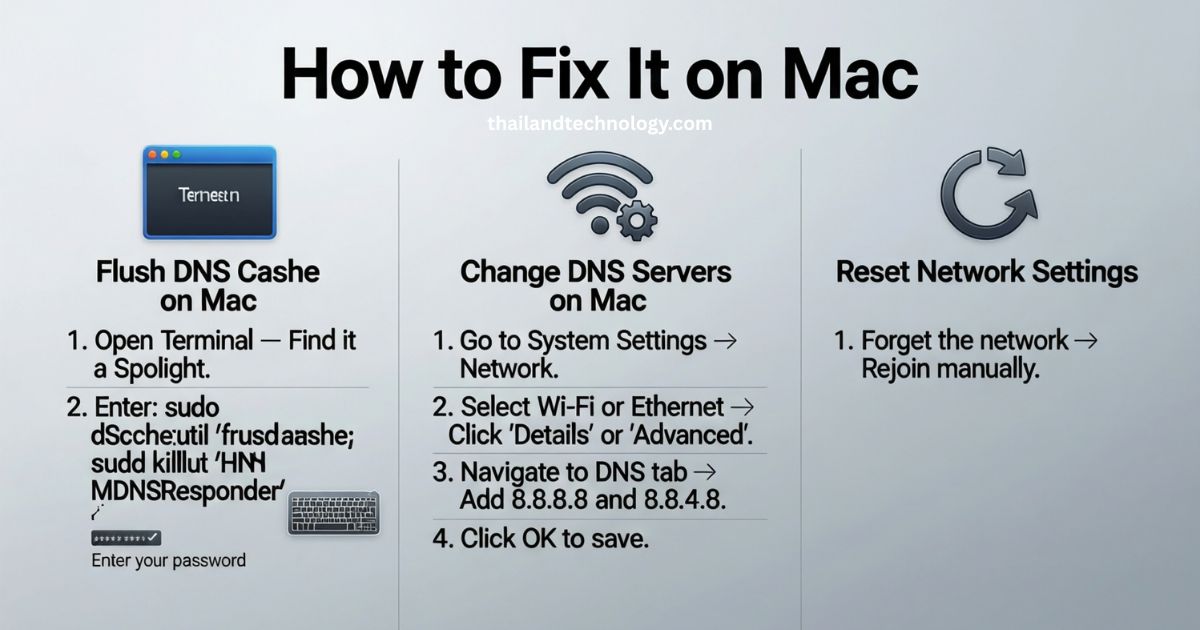
Mac fixes are like Windows but different tools.
Flush DNS Cache on Mac
- Open Terminal. Find it in Spotlight.
- Type sudo dscacheutil -flushcache; sudo killall -HUP mDNSResponder.
- Hit Enter. Type your password.
Change DNS Servers on Mac
- Go to System Settings. Click “Network.”
- Pick your Wi-Fi or Ethernet.
- Click “Details” or “Advanced.”
- Go to DNS tab.
- Add 8.8.8.8 and 8.8.4.4.
- Click OK.
Reset Network Settings
If needed, forget the network and join again.
How to Fix It on Android or iPhone
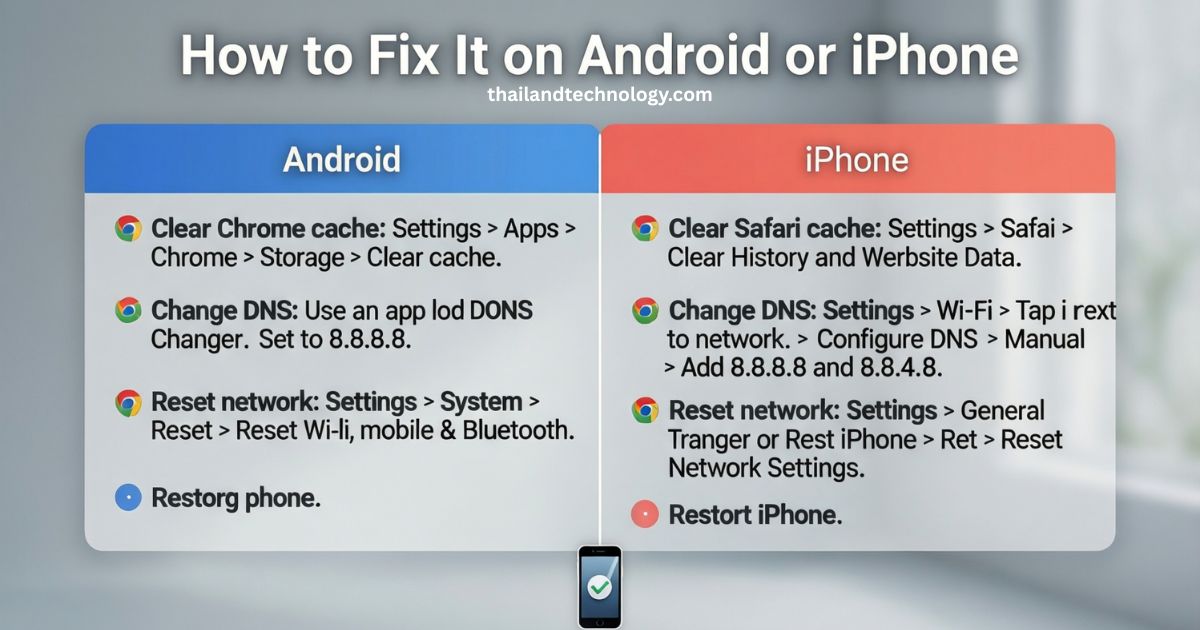
Phones get this too. Mostly in Chrome.
For Android
- Clear Chrome cache: Go to Settings > Apps > Chrome > Storage > Clear cache.
- Change DNS: Use an app like DNS Changer. Set to 8.8.8.8.
- Reset network: Settings > System > Reset > Reset Wi-Fi, mobile & Bluetooth.
- Restart phone.
For iPhone
- Clear Safari cache: Settings > Safari > Clear History and Website Data.
- Change DNS: Settings > Wi-Fi > Tap i next to network > Configure DNS > Manual > Add 8.8.8.8 and 8.8.4.4.
- Reset network: Settings > General > Transfer or Reset iPhone > Reset > Reset Network Settings.
- Restart iPhone.
Read: TTB Bank Guide 2026: Unlock Smart Savings, Loans, Cards & Exclusive Deals
Advanced Tips If Basic Fixes Fail
Still stuck? Try these.
- Check your hosts file. It can block sites. On Windows: Open Notepad as admin. Go to C:\Windows\System32\drivers\etc\hosts. Remove bad lines.
- Turn off antivirus for a bit. See if it blocks DNS.
- Run network troubleshooter. On Windows: Settings > Network & Internet > Status > Network troubleshooter.
- Update your browser and OS. Old versions cause bugs.
- If it’s one site, check if it’s down. Use another device or ask friends.
Popular Public DNS Servers
Use these if you change servers. They are free and good.
| Provider | Primary DNS | Secondary DNS |
|---|---|---|
| 8.8.8.8 | 8.8.4.4 | |
| Cloudflare | 1.1.1.1 | 1.0.0.1 |
| OpenDNS | 208.67.222.222 | 208.67.220.220 |
Pick one. Google is easy for most.
How to Stop This Error from Coming Back
You fixed it. Now keep it away.
- Use good DNS servers always.
- Keep your device and router updated.
- Don’t change settings unless you know.
- Run antivirus scans often. But check if it blocks good sites.
- If you use VPN, pick a trusted one.
Follow these. You won’t see the error much.
FAQs
What does DNS_PROBE_FINISHED_NXDOMAIN mean?
It means your device can’t find the site’s IP address. DNS failed to look it up.
Is this error from my side or the site?
Often your side. But sometimes the site is down or domain expired.
Can I fix it without tech skills?
Yes. Most fixes are simple clicks and types.
Why does changing DNS help?
Public DNS like Google’s are more reliable than your ISP’s.
What if it happens on all sites?
Check your internet. Restart router. Call your ISP.
Does this error mean a virus?
Not always. But scan your device to be safe.
How do I know if the fix worked?
Try the site again. If it loads, you’re good.
Can this happen on Firefox or Edge?
Yes. It’s not just Chrome. Fixes are the same.
What if nothing works?
Ask for help. Go to forums or call support.